Draw Cartoons 2 PRO
- 4.6
- Rating
- 50.00K
- Installs
- $9.99
- Price
 Analysis by App-foxy
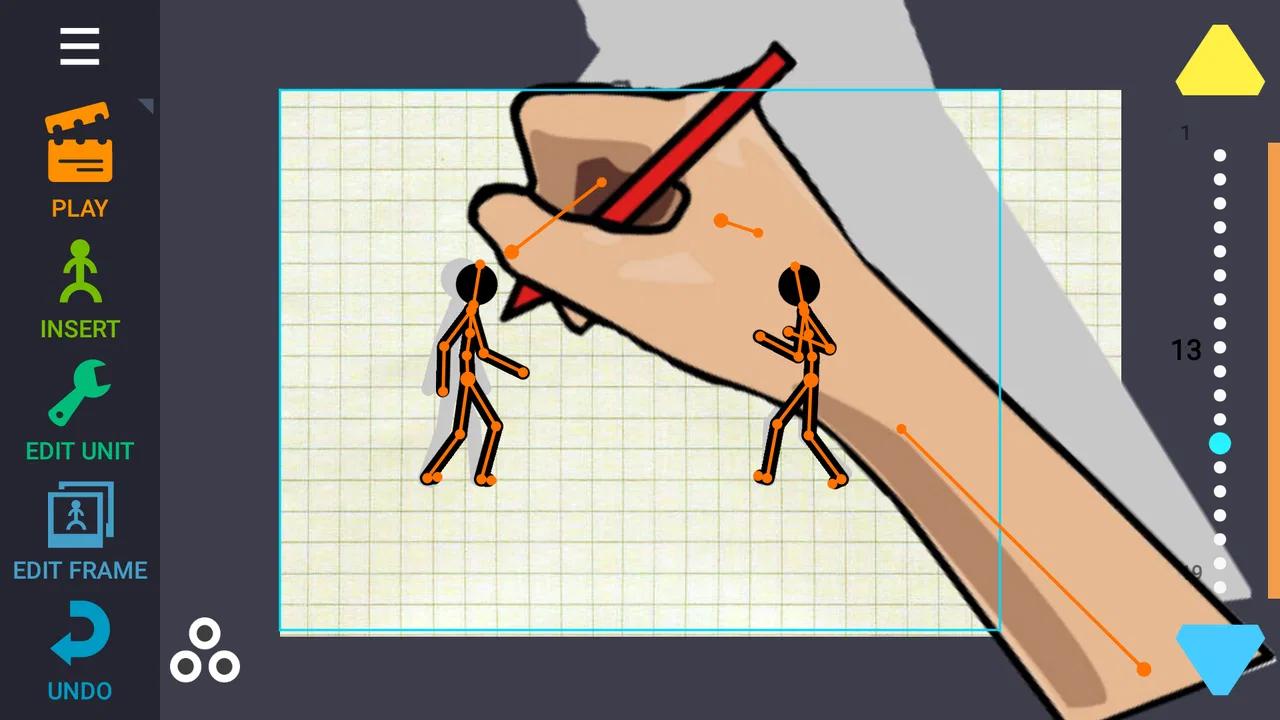
I approached Draw Cartoons 2 PRO as a practical drawing and animation tool rather than a simple sketchpad. Its purpose is clear: help you build cartoons by drawing scenes, arranging characters, and turning individual actions into a moving result. That makes it more demanding than an ordinary art app, but also more useful when a still image is not enough.
What stood out to me is the difference between opening the app for a quick doodle and using it for an actual animation project. A sketch can be casual, but animation asks you to think about timing, movement, poses, and continuity. This app sits in that more focused space. It is aimed at people who want to create short animated ideas directly on a mobile device, without immediately moving to a full desktop production setup.
The app comes from Zaliv Armenia and belongs to the Art & Design category. It costs $9.99, carries an Everyone age rating, and runs on devices using OS 10 or newer. Its current version is 4.03, while its long presence since August 11, 2013, gives it a more established feel than a newly launched experiment. The store presents it as Draw Cartoons 2 PRO, but my impression is that its real appeal comes from the workflow: it encourages you to think in scenes and motion instead of treating each drawing as an isolated picture.
You May Also Like

 Blood Strike: 2.5 Anniversary
Blood Strike’s Loadouts Turn Every Drop Into a Tactical Gamble
A close look at Blood Strike’s custom loadouts: how fast access to signature weapons reshapes its battle royale rhythm, rewards preparation, and narrows the gap between fights.

 Pandora - Music & Podcasts
Pandora’s Music Is Easy to Start, but Harder to Recover
Pandora’s strength is its low-effort path from a seed to a station. Its weak spot is how much confidence it asks you to place in connection, setup, and quiet recovery.

 8 Ball Pool
8 Ball Pool Is Built on Rivalries, Rematches, and Routine
A close look at the rivalries, rematches, shared routines, and unanswered safety questions that turn a quick pool match into a persistent mobile community.

 Samsung Music
Samsung Music’s Quiet Strength Is Playing What You Already Own
Its reach comes less from spectacle than from dependable access to a personal library. That simplicity is both the app’s strongest retention engine and its ceiling.

 AccuWeather: Weather Radar
AccuWeather Review: A Quick, Clear Forecast for Everyday Decisions
For everyday plans, the best forecast is the one you can understand quickly. AccuWeather makes rain timing, radar, and local conditions easy to act on, with a few trade-offs.

 Hill Climb Racing
Why Hill Climb Racing Still Turns Crashes Into One More Run
A tiny car, a bumpy hill and one more upgrade: Hill Climb Racing keeps resurfacing because its simple chaos makes every near-miss feel personal.
More From Our News Desk



How it feels during ordinary drawing and animation work
I approach ordinary work in Draw Cartoons 2 PRO as a sequence of small decisions: get the action readable, check its rhythm, then polish the drawing. That makes the app more rewarding when I treat a cartoon as a set of manageable moments rather than one sprawling project. Next, I’ll look at how that workflow changes when a scene grows more demanding.
Speed expectations before you begin
The first thing I would tell a new user is not to judge the app by the time it takes to create a first animation. Drawing a single frame can be quick, but a convincing sequence naturally takes longer because every movement needs attention. The app can make the process more direct than working with separate images in a general-purpose editor, yet it cannot remove the creative decisions that slow animation down.
For a simple idea, the workflow feels approachable: create a visual starting point, adjust the action, and inspect how the result moves. The benefit is that you can evaluate the animation as a sequence rather than guessing whether a collection of still drawings will work. That immediate feedback is especially useful for beginners, because it reveals problems that are easy to miss when looking at frames one by one.
I found the most sensible approach is to begin with a short action instead of a full story. A character turning, waving, jumping, or reacting to something gives you a manageable test. Once the movement feels understandable, you can add detail. Starting with complex backgrounds and many characters makes the project harder to inspect and can give the impression that the app is slow when the real issue is an overloaded creative plan.
The best speed improvement is usually a simpler animation plan, not faster tapping. I recommend blocking the main poses first and refining only after the movement reads clearly. This reduces unnecessary reworking and makes the application feel much more responsive in practice.
What happens during heavier projects
Animation becomes more demanding when you keep adding drawings, characters, background elements, and timing adjustments. Even when the interface remains usable, your own workload increases because every added element creates another relationship to check. A character may move correctly while the background feels disconnected, or the timing may work for one action but make the next action feel abrupt.
One useful habit is to separate visual decisions from motion decisions. I first decide where the important objects should be, then concentrate on how they move. If I change the character design, position, and timing all at once, it becomes difficult to identify what improved or caused a problem. This staged workflow is more important here than chasing a perfect result immediately.
For longer sessions, I would also keep projects deliberately organized around small scenes. A short scene is easier to review, easier to revise, and less frustrating if an experiment does not work. This is a practical trade-off: dividing a larger idea may create more management work, but it gives you better control than putting every event into one increasingly complicated sequence.
Heavy use is most likely to feel difficult when you repeatedly preview unfinished work while making many small changes. Previewing is valuable, but constant switching between editing and reviewing can interrupt your rhythm. I prefer making a group of related adjustments, then checking the sequence. That approach keeps the creative process calmer and makes performance problems easier to distinguish from animation problems.
Stability and recovering from mistakes
Reliability matters more in animation than in a basic drawing app because a project represents accumulated effort. A small mistake in a sketch is annoying; losing the structure of a moving scene can be discouraging. My advice is to treat saving as part of the workflow rather than something to remember only at the end of a session.
When I work on a longer idea, I like to pause after a meaningful milestone: the main poses are complete, a scene has a usable rhythm, or a background is finally settled. That gives me natural recovery points. It also makes experimentation safer, because I can try a change without feeling that the entire project depends on it working.
The app is better suited to a deliberate workflow than to careless multitasking. If you jump rapidly between it and several other demanding apps, your device may need to reload content or reclaim memory. That is a general mobile limitation rather than a flaw I would assign automatically to this application, but it is worth keeping in mind when working on a detailed animation.
If something feels wrong during editing, I would first simplify the scene and test the movement with fewer elements. This is a useful diagnostic trick. If the simplified version behaves smoothly, the issue may be project complexity. If the same action remains awkward, the problem is probably timing or drawing rather than device performance. That distinction can save a lot of unnecessary troubleshooting.
Device limits and practical expectations
The minimum requirement of OS 10 means the app is not restricted to only the newest phones and tablets, which is helpful for people using an older compatible device. Still, operating-system compatibility does not guarantee that every device will feel equally comfortable. Screen size, available memory, stylus support, and the general age of the hardware can all affect how pleasant detailed animation work becomes.
A small phone can be convenient for quick ideas, but it gives less room for precise drawing and for checking how several elements relate to one another. A larger screen is more comfortable when you need to inspect a pose, adjust a detail, or compare movement across a sequence. I would choose the largest compatible screen already available to me before considering a separate purchase just for this app.
Resource demands also depend on how ambitious the project becomes. A short, simple cartoon should be a reasonable starting point for a compatible device. A crowded scene with many edits is a different test. If your phone runs short on free space or memory, keeping other apps closed and avoiding unnecessary background activity is sensible. I would not promise identical performance across all hardware, but I would expect the app to benefit from a clean, focused setup.
There is another device constraint that is easy to overlook: input comfort. Animation requires repeated small adjustments, so a screen that feels fine for occasional drawing may become tiring during a long session. If your fingers cover important parts of the canvas or you struggle to make controlled marks, the limitation is not necessarily the software. In that situation, a tablet or a compatible stylus-based setup may make a bigger difference than changing apps.
Where it fits among familiar alternatives
Compared with a standard drawing app, this tool makes more sense when movement is the final goal. A normal sketching application may offer a faster route to one polished illustration, especially if you care mainly about brushes, painting, or detailed static artwork. I would choose that kind of app for posters, digital painting, or a single finished character portrait.
Compared with a desktop animation package, Draw Cartoons 2 PRO is more attractive when convenience matters. You can develop an idea without sitting at a workstation, and the mobile format lowers the barrier to trying a short cartoon. The trade-off is that a phone or tablet is not automatically the best place for highly complex production. If you need a large workspace, extensive editing control, or a pipeline built around professional desktop tools, a computer-based alternative may be the better choice.
It also occupies a different position from quick video editors. A video editor is useful when you already have footage, photographs, or finished assets and want to cut them together. This app is for creating animated action from the beginning. If your project starts with recorded clips, I would not use it as my first choice. If your project starts with an idea that needs to be drawn and animated, it becomes much more relevant.
For children and casual creators, the Everyone rating is reassuring, but the rating does not mean every child will find the workflow effortless. Animation still requires patience and an ability to understand sequences. I can imagine it working well as a creative activity with guidance, while younger users may enjoy it more if an adult helps them break a story into small scenes.
Who should use it and who should skip it
I would recommend this app to someone who wants to make cartoons rather than only draw pictures. It is a good match for experimenting with character movement, visual jokes, short stories, and simple animated explanations. It can also suit a learner who wants to understand the basic relationship between poses and timing without committing immediately to a larger desktop environment.
It is less suitable for someone seeking an instant result with almost no setup. Even a simple animation asks you to make several decisions, and the app cannot turn a rough idea into a polished sequence automatically. I would also steer away from it if your main interest is advanced static illustration, photo editing, or assembling existing video clips. Those tasks are better served by tools designed around them.
The $9.99 price makes the decision more deliberate than downloading a free sketchpad for occasional doodles. In my view, the cost is easier to justify if you expect to return to animation and use the workflow repeatedly. If you only want to draw once in a while, a less specialized alternative may offer better value. The presence of around 50 thousand installs and a 4.6 average from roughly 6 thousand ratings suggests that it has found a real audience, but popularity alone should not replace matching the app to your habits.
Small workflow choices that improve results
My first practical tip is to create a motion test before investing in appearance. Use a deliberately simple character or shape and check whether the action communicates what you intended. This prevents a common waste of time: polishing a design before discovering that the movement is too fast, too subtle, or unclear.
My second tip is to use pauses intentionally. Beginners often make every change happen continuously, which can make a cartoon feel rushed. Holding a pose briefly before an action or reaction can make the result easier to understand and more expressive. This is not a special button or hidden feature; it is a way of using the animation workflow more effectively.
My third tip is to review scenes at normal viewing speed instead of judging them only while stepping through edits. A pose can look attractive in isolation but feel unnatural in sequence. Watching the complete action helps reveal uneven timing, accidental jumps, and moments where the viewer needs more time to understand what happened.
A fourth useful habit is to keep the first version intentionally rough. I would rather finish a short, readable scene than spend all my time refining one frame. Once the whole action works, details have a clear purpose. This approach also reduces resource pressure because you are not building a large, intricate project before you know whether the central idea is successful.
My performance verdict after using it as an animation tool
I see Draw Cartoons 2 PRO as a focused mobile option for people who want to create animated cartoons in manageable steps. Its performance should be judged together with the complexity of the project: short scenes and disciplined editing are likely to feel much more comfortable than an attempt to construct a large production in one crowded file. The app rewards planning, regular saving, and realistic expectations about mobile hardware.
The fact that it has been available since 2013 and has reached version 4.03 gives me more confidence in its identity as an established tool, while the current version still matters for anyone deciding whether it fits a present-day device. I would install it on a compatible phone or tablet with a comfortable screen, close unnecessary apps during longer sessions, and begin with a small animation before committing to a major project.
My final recommendation is positive, with a clear condition: choose it because you want animation, not simply because you want another drawing app. For that use, it offers a more relevant creative path than a static sketch tool and a more portable starting point than a desktop package. If your goal is a quick doodle, advanced illustration, or video editing, I would look elsewhere. But for learning how drawn characters move and turning small ideas into cartoons, I think the purchase can make sense.
After considering the price, the Everyone rating, the OS 10 requirement, and the app’s established audience, I would describe it as a specialized rather than universal recommendation. It asks for patience, and heavier projects demand sensible organization, but that is part of the nature of animation. Used with short scenes, careful previews, and regular recovery points, it becomes a practical creative companion instead of an overwhelming blank canvas.
FAQs for Draw Cartoons 2 PRO
01What is Draw Cartoons 2 PRO, and what can you create with it?
Draw Cartoons 2 PRO is an animation app designed for creating short cartoon videos using hand-drawn characters, objects, backgrounds, and frame-by-frame movement. It is aimed at beginners as well as users who want more control over their animations. You can build scenes, add dialogue or sound, adjust timing, and export finished projects as shareable videos.
02Is Draw Cartoons 2 PRO suitable for beginners?
Yes, the app is relatively approachable for beginners because it combines drawing tools with an animation timeline and an object-based workflow. New users may need some time to understand layers, keyframes, scene organization, and movement controls, but the interface becomes easier after a few practice projects. It is helpful to start with a simple character and short animation before attempting a larger production.
03Does Draw Cartoons 2 PRO include extra features compared with the free version?
The PRO edition is generally intended to provide a more complete experience, commonly with fewer restrictions, additional creative tools, and reduced interruptions compared with a free release. However, the exact benefits can depend on the platform and current app version. Before downloading, check the official store listing to confirm included features, supported exports, and whether any optional purchases remain available.
04Can animations made in Draw Cartoons 2 PRO be exported and shared?
The app is built around producing finished cartoon animations that can normally be rendered into a video format for saving or sharing. Export time depends on the length and complexity of the project, while device storage and performance may affect the process. It is wise to save projects regularly and verify the available export resolution, file format, and sharing options on your specific Android or iOS device.
05Does Draw Cartoons 2 PRO work offline, and what device permissions might it need?
Many of the core drawing and animation functions can usually be used without a constant internet connection, although downloads, updates, advertising-related services, cloud features, or sharing may require access to the internet. The app may also request permission to save files or access media when importing images, audio, or exporting videos. Review permissions carefully and install it only from an official store.
Pros
- Simple tools make frame-by-frame animation approachable for beginners.
- Supports custom characters
- props
- and backgrounds for more creative control.
- Onion-skinning helps align movements between animation frames.
- Voice recording and sound effects add personality to finished cartoons.
- Project-based workflow makes it easy to save and continue animations later.
Cons
- Detailed animations can require considerable time and patience to complete.
- The interface may feel cramped on smaller phone screens.
- Advanced editing options take time to learn effectively.
- Large projects may use significant storage space on the device.
- Exporting complex animations can take longer on older phones.

Draw Cartoons 2 PRO
Gallery